To begin benefiting from adstrong’s CSS bidding advantages, your Merchant Centers (MC) must be linked to your CSS account. There are two options to initiate this migration, depending on your current access level.
Option 1: Self-Service (If you have CSS Group or Domain access) #
If you have direct access to the CSS Group or CSS Domain, follow these steps to initiate the migration:
-
Navigate to your CSS Domain: Log in and ensure you are at the correct domain level (see your CSS structure).
-
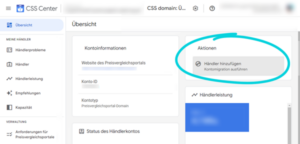
Initiate Migration: On the Overview page, look at the Actions section on the right and click “Add Merchant”.
-
Fill out the form as follows:
-
Merchant ID: ID of the Merchant Center you’re migrating.
-
Migration as: Always select “MCA Sub-Account”. Only then will the Merchant Center be added to your CSS in compliance with advanced Google guidelines. Also, you’ll have direct access to the MC through your CSS.
-
Destination MCA ID*: Enter your CSS MCA ID here.
-
-
Track Progress: You can check the status of initiated MC migrations under Merchants (left navigation) → Migrations History.
-
Finalize in the Merchant Center: After adding an MC, the Merchant Center owner is notified of the CSS switch request. The switch must be accepted in the MC by a user with Admin Rights.
*In the “Merchant details” tab, you can see all the MCAs (Multi Client Accounts) within your CSS. Only one MCA should be visible here, which is your “Primary CSS MCA” where all the Merchant Centers are switched to.
Important: If you want to switch an entire MCA (including all sub-accounts) instead of individual shops, follow the steps in the dedicated section of this guide. #
Option 2: Managed Support (If you only have MCA access) #
If you do not have CSS Group or Domain-level access, our team will handle the migration for you.
-
Action: Send an email to css-support@adstrong.com.
-
Information needed: Please include the Merchant Center ID number(s) you wish to add.
-
Next Steps: We will send the switch request. Once initiated, an Admin for the Merchant Center must log in to accept the request via the notification bell.
Switch an MCA to your CSS #
If you want to link your existing MCA (and all its sub-accounts) to your CSS, follow these steps:
1. Add the MCA in the CSS Center
-
Log in to the Google CSS Center.
-
Click on “Add Merchant” and enter your MCA ID.
-
Select “Add as standalone”.
-
Important: MCAs must not be added as a sub-account of another MCA.
2. Set admin rights correctly in the Merchant Center Grant the CSS user admin rights in the MCA:
-
Open your Merchant Center.
-
Go to “Settings > Users and Access”.
-
Scroll to “CSS access”.
-
Assign Admin access.
-
Important: After the switch, the account loses the connection to the previous CSS. Therefore, make sure you have direct admin access to the MCA.
3. Send us the following information for indexing For our IT to correctly activate your account (mandatory for the price comparison site), email css-support@adstrong.com with:
-
Your MCA ID.
-
The CSS domain ID you are using.
-
A confirmation that the CSS user has Admin rights in the MCA.
-
Without this information, your product feed won’t appear on the price comparison site and will not be CSS-compliant.
Things to Note #
-
Switch Timing: Usually, the CSS switch happens right after acceptance in the MC. However, if the Merchant Center was with another CSS provider before, it may take up to 14 days for the switch to occur. In this case, there is nothing to do but wait.
-
Access Risks: Links between MCs and MCAs (Multi-Client Accounts) are lost during the CSS switch. Users who can only log in to an MC through an MCA and don’t have access to the CSS need direct access to the MC before the CSS switch. This ensures they can log in to the MC even after the switch.
-
User Conflicts: You cannot add a Merchant Center to your CSS if any user in that MC is already registered as a user in the CSS. In this case, the relevant user must be removed from the MC first. After the switch, this user will be able to access the MC through the CSS.
-
Feed Filename Conflicts: Merchant Centers may not be added to a CSS if the MC has a feed filename that matches an existing MC in the CSS. Note: This refers to the feed filename, not the feed name. This conflict is extremely rare, but if it occurs, you must delete the respective feed and recreate it from scratch prior to the switch.
VIDEO TUTORIALS #
Video: Add a Merchant Center to your CSS
Video: Accept a CSS switch request in the Merchant Center


'/%3E%3C/svg%3E)

