Option 1: Self-Service (If you have CSS Domain access) #
If you have direct access to the CSS domain, follow these steps to initiate the switch:
-
Log in to your CSS and navigate to the correct CSS domain.
-
Click on Merchants in the left-hand menu.
-
Open your Primary MCA to view all linked Merchant Center sub-accounts.
-
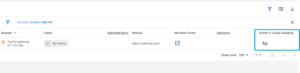
Locate the column labeled Switch to Google Shopping.
-
Note: If you don’t see this column, click the “Columns” icon to enable it.
-
-
Click the Switch icon for the specific MC and confirm the action.
-
Finalize in the Merchant Center: Log in to the respective Merchant Center, click the notification bell in the top left, and accept the linking request from Google Shopping Europe.
[!IMPORTANT] Check Access First: Ensure at least one person has direct admin access to the Merchant Center before accepting the switch to avoid being locked out.
Option 2: Managed Support (If you only have MCA access) #
If you do not have CSS domain-level access, our team will handle the migration for you.
-
Action: Send a brief email to css-support@adstrong.com.
-
Information needed: Please include the Merchant Center ID number(s) you wish to move.
-
Next Steps: Once we initiate the removal, you will receive an email notification. You will still need to log in to your Merchant Center to accept the GSE linking request via the notification bell.
Frequently Asked Questions #
- Can I switch an entire MCA? Yes. You can switch an entire Multi-Client Account to GSE, provided you have direct email access to the MCA (not just access inherited through the CSS).
- What if I don’t see the switch option? This usually means you lack the necessary permissions. Please contact us at the email above, and we will assist you manually.


