Table of Contents
Why check? #
Before making any changes to free listings, you need to verify whether free listings are assigned to your CSS. This guide explains how to check this, depending on your access rights.
Please check which of the following options applies to you.
How to check whether the free listings are assigned to your CSS: #
If you have CSS Domain access #
- Navigate to your CSS domain
- Click Merchants in the left navigation
- Open the primary CSS MCA by clicking the blue link that shows the number of subaccounts
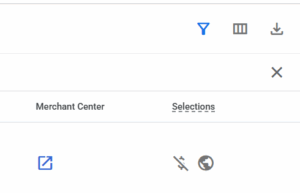
- Edit the visible columns so that the Selections column becomes visible
- The icons indicate:
- Strikethrough dollar sign = free listings
- Globe = shopping ads outside Europe
Note:
If you see dollar signs, your free listings are active in the Merchant Center. Otherwise action is required
You can find more information about configuration before or after a switch in the relevant articles
If you have MCA access #
- Log in to your MCA at https://merchants.google.com
- Click on Products & store on the left side
- Click on the Needs attention tab
- Check whether you see the following message

This message means you need to take action if you want this CSS to be selected for you free listings.
Please check our article about how to configure free listings after an MC Switch.


